Your Shopify store is a goldmine of data. Every click, abandoned cart, and purchase tells a story. But if that data is siloed in Shopify's dashboard, isolated from your marketing and support teams, you're leaving money on the table.
Connecting Shopify to HubSpot is the fix. It's about creating a single source of truth for your entire ecommerce operation. This connection is the crucial first step to building a revenue machine that runs on autopilot.
Why Your Live Store Needs HubSpot Yesterday
Running your marketing and sales from separate platforms creates massive blind spots. You can't see the full customer journey, and that's a problem that costs you sales.
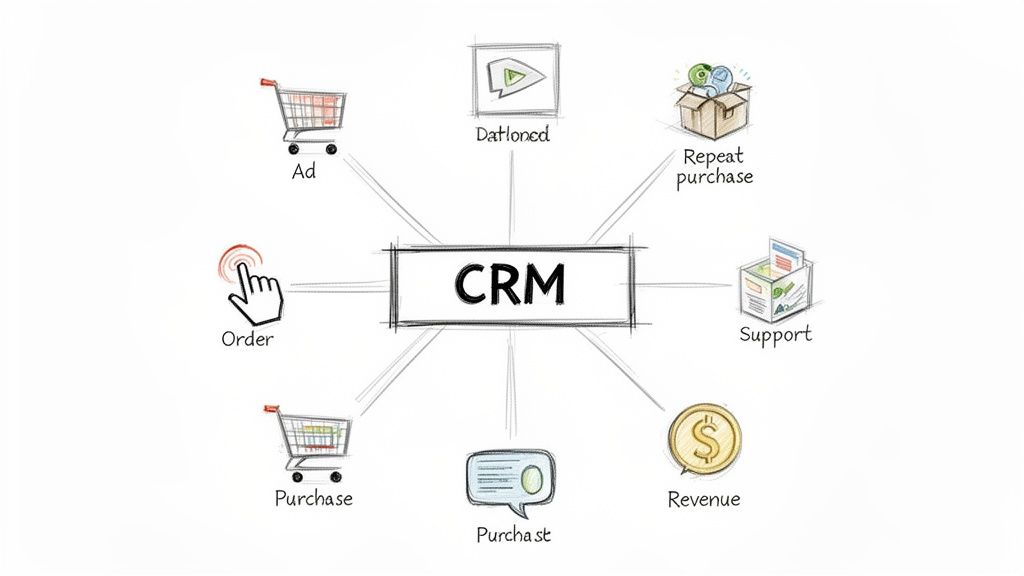
The HubSpot and Shopify integration shatters those data silos. Suddenly, you have a unified command center. You can see the full story of every customer—from the first ad they clicked, to the products they browsed, right through to their fifth purchase and the support ticket they submitted last week. It's all there, in one clean timeline.
Unlock a 360-Degree Customer View
This isn't just about neat data organization. It's about unlocking serious commercial power. When your marketing, sales, and support teams all work from the same customer data, the results are immediate.
- Hyper-Targeted Marketing: Forget generic email blasts. Start segmenting customers based on real purchase history, lifetime value (LTV), or browsing behavior to send offers they actually convert on.
- Boosted Customer Lifetime Value: This is where automation shines. Build post-purchase sequences and win-back campaigns that keep customers coming back for more, increasing their LTV automatically.
- Insanely Efficient Customer Support: Your support team gets the full context of a customer's history before they even type "hello." This means faster resolutions and happier customers who buy again.
This is what it looks like when your CRM becomes the true heart of your business, connecting everything from customer acquisition to retention.
By connecting these dots, you stop being reactive and start building proactive, profitable customer relationships.
The Proof Is in the Numbers
There's a reason the native HubSpot connector has over 14,000 active installs. It's a non-negotiable for growing DTC brands. I’ve seen it firsthand: one merchant we worked with saw a 25% increase in engagement and a 15% boost in conversions just by getting their sync and automations dialed in. These are real results that hit your bottom line.
The core benefit is simple: it closes the loop between your marketing spend and actual revenue. You stop guessing what works and start making data-driven decisions that fuel scalable growth.
This integration isn't just another app. It’s a foundational upgrade for any serious Shopify brand ready to scale. To see how others have put these strategies into action, check out some of our ecommerce case studies.
Choosing Your Integration Path: Native vs. Third-Party
Your first big decision is how to connect HubSpot and Shopify. This isn't just a technical detail—it's the bedrock of your ecommerce marketing operation. Get it right, and you'll have a seamless flow of data fueling growth. Get it wrong, and you're facing messy data, broken automations, and manual cleanup.
You have two main paths: HubSpot’s official, native integration or a third-party connector like Zapier.
For the vast majority of Shopify stores, the native HubSpot integration is the hands-down winner. It's free, built by HubSpot, and designed to handle essential ecommerce data—customers, products, and orders—with a near real-time sync. This direct pipeline is reliable and gets the job done for most businesses.
However, the native path has limits. Third-party tools fill the gaps when your store has complex data needs that the standard sync can't handle.
When to Consider a Third-Party Connector
Think of a third-party tool as a specialist you call for a specific job. Explore this route if your operations hinge on:
- Custom Shopify Metafields: This is a big one. The native integration doesn’t sync custom metafields. If you’re storing critical customer info or unique product attributes in those fields, you’ll need a connector to map that data to HubSpot.
- Complex Multi-App Workflows: If your process requires Shopify data to hit HubSpot, then get pushed to a fulfillment service and a custom loyalty platform, a third-party tool can act as that central switchboard.
- Unique Data Transformation: If you need to split a "Full Name" field from Shopify into separate "First Name" and "Last Name" properties in HubSpot, a connector can handle that on-the-fly logic.
My Advice: Always start with the native integration. It's powerful and covers the essentials beautifully. Only layer in a third-party tool if you hit a specific wall that the native sync can't break through. Don't overcomplicate your tech stack from day one.
HubSpot Native Integration vs. Third-Party Connectors
This direct comparison should clarify which path is the right starting point for your store.
| Feature | HubSpot Native Integration | Third-Party Connectors (e.g., Zapier) |
|---|---|---|
| Cost | Free | Typically requires a paid subscription based on usage |
| Setup & Maintenance | Simple, one-time setup | More complex; requires building and maintaining individual "Zaps" |
| Sync Speed | Near real-time (often within 10 minutes) | Varies by plan (1 to 15 minutes or longer) |
| Core Data Sync | Robust and reliable for Customers, Orders, Products | Yes, but requires manual mapping for each object |
| Custom Metafield Sync | Not supported | Yes, this is a primary use case |
| Data Transformation | Limited to standard field mapping | Highly flexible; can reformat data before it syncs |
| Support | Directly from HubSpot support | From the third-party provider (e.g., Zapier support) |
Ultimately, the native HubSpot solution is built for stability and ease of use, while third-party tools are built for flexibility.
The Deciding Factors
The native integration syncs key records within 10 minutes of a change—more than fast enough for abandoned cart emails and post-purchase follow-ups. Third-party tools can introduce delays depending on your subscription, which might be a deal-breaker for time-sensitive workflows.
No matter which path you choose, smart data management is universal. Planning your data mapping and ensuring clean data governance is crucial. This same thinking applies when connecting other core systems, as detailed in this guide to a successful HubSpot integration with Salesforce.
Your decision boils down to simplicity versus flexibility. The native connector is a powerhouse that handles 90% of a typical store's needs straight out of the box.
If you want to see how these platforms work together to drive sales, schedule a Selzee demo to see this kind of automation in action.
Setting Up Your Data Sync (The Right Way)
Connecting the platforms is just the first step. The real work—and what separates pros from rookies—is configuring the sync. This is where you build the foundation for an automated ecommerce powerhouse. Rushing this signs you up for a CRM nightmare of duplicate contacts and messy data. Get it right, and the results will speak for themselves.
What’s Actually Moving Between Shopify and HubSpot?
At its core, the integration syncs four crucial data types: Customers, Orders, Products, and Abandoned Checkouts. This isn't a data dump. It's about turning raw Shopify transactions into rich customer profiles inside HubSpot. Suddenly, your marketing and sales teams have the full story on every customer.
And now, there's a two-way contact sync available (in BETA, but it's a game-changer). This means updates you make to a contact in HubSpot can be pushed back to Shopify, maintaining one unified source of truth for customer data. It's a massive leap forward that also powers fantastic pre-built ecommerce reports.
Master Your Field Mappings (Don't Skip This!)
Before you hit "sync," pause. A common mistake is accepting default field mappings. This is how crucial data gets lost in translation or ends up in the wrong place. Your mission is to map every important Shopify data point to a specific HubSpot property where it will be useful for segmenting and triggering automations.
Take the "Accepts Marketing" checkbox in Shopify. Map it directly to a custom HubSpot property named something crystal clear, like "Email Marketing Opt-in." Now there’s zero ambiguity when you're building a workflow or pulling a list for your next newsletter.
Pro Tip: Build your custom properties in HubSpot before you configure the sync. This forces you to be intentional about what data you need and where you want it to live, which is far better than cleaning up a chaotic data import later.
The Rules of the Sync: What You Need to Know
To avoid surprises, understand how HubSpot handles the data. The sync has its own logic for deduplicating and deleting records.
- Contacts: The sync uses the email address as the unique identifier. Critically, deleting a contact in HubSpot will not delete the customer in Shopify (and vice versa). It’s a safety net to prevent accidental loss of purchase histories.
- Orders: All order data flows one-way, from Shopify to HubSpot. Your Shopify admin remains the single source of truth for all transactions.
- Products: Products are matched based on their product name. A key limitation is that Shopify product variants don't sync as individual items in HubSpot. If you rely heavily on variants, you may need a workaround.
Nailing your initial sync setup is non-negotiable. It's the bedrock for every abandoned cart email, post-purchase follow-up, and VIP customer segment you'll ever create. Bad data leads to broken automations and lost revenue. Get this right from the start.
Building Automation That Actually Prints Money
You've connected HubSpot and Shopify, and your data is flowing. Now, it's time to make that data work for you with intelligent, automated workflows that drive sales while you sleep. Think of your synced Shopify data as the fuel and HubSpot's workflow builder as the engine.
The business case here is a no-brainer. This integration unlocks sophisticated customer segmentation and automation. One enterprise case study highlighted a painful $47,000 lesson from poor initial planning, but once optimized, the returns were massive. Using behavioral triggers like cart abandonment, they launched targeted marketing that brought in real revenue.
This flowchart nails the core process for getting your data prepped for automation.
The biggest takeaway? You have to get your field mapping right and keep your data clean. Without that solid foundation, your automation will fall flat.
The Advanced Abandoned Cart Sequence
Shopify's built-in abandoned cart emails are a one-size-fits-all solution. With HubSpot, we can build a smarter sequence that uses branching logic based on cart value.
- Trigger: The
Abandoned Cartproperty for a contact is populated. - Action 1 (Wait 1 hour): Send a simple reminder: "Did you forget something?"
- Action 2 (If/then branch): Check if the
Abandoned Cart Valueis greater than your store's average order value (e.g., $150).- If YES (High-Value Cart): This one is worth fighting for. Wait 24 hours, then send an email with a compelling, one-time offer. A 15% off discount or free expedited shipping can be the nudge they need.
- If NO (Standard Cart): For smaller carts, try a different approach. Wait 24 hours, then send an email packed with social proof—think glowing customer reviews for the specific items in their cart.
- Goal: The contact completes their purchase, and the
Number of ordersproperty is greater than its previous count.
The Post-Purchase Upsell and Review Flow
The moments right after a purchase are gold. Trust is at an all-time high, making it the perfect time to ask for a review or suggest a complementary product. This workflow turns one-time buyers into loyal, repeat customers.
- Trigger: A contact completes a purchase (their
Number of ordersproperty increases). - Action 1 (Wait 7 days): Send a direct email asking for a product review. Link them straight to the product page.
- Action 2 (Wait 14 days): Follow up with a personalized email featuring products that complement what they just bought. If they bought a coffee maker, show off your best-selling espresso beans.
Your email copy is critical. If you're staring at a blank screen, try this tool to generate product descriptions that grab attention. Using a free product description tool can save time and improve conversion.
The "Win-Back" Campaign for Dormant Customers
Every store has them: customers who bought once and vanished. This workflow re-engages them before they're gone for good.
- Trigger: The contact property
Days since last orderis greater than 90. - Action 1: This kicks off a 3-part "We Miss You" email sequence.
- Email 1: A gentle check-in: "Hey, just wanted to see if you're still interested in our new stuff?"
- Email 2: A few days later, highlight new arrivals and best-sellers.
- Email 3: Offer a "welcome back" discount—like 20% off—that expires in 48 hours to create urgency.
- Goal: The contact makes another purchase, resetting their
Days since last orderproperty.
To really get your automations printing money, combine them with a solid strategy around Website Optimization for Lead Generation for Luxury Brands, fully taking advantage of HubSpot's powerful CRM. These workflows are just a starting point. The real magic happens when you tailor these ideas to your specific products and customers.
Tracking Performance and Proving ROI
All the automation in the world means nothing if you can't prove it’s making you money. The HubSpot and Shopify integration turns marketing hunches into hard data that justifies your budget and strategy.
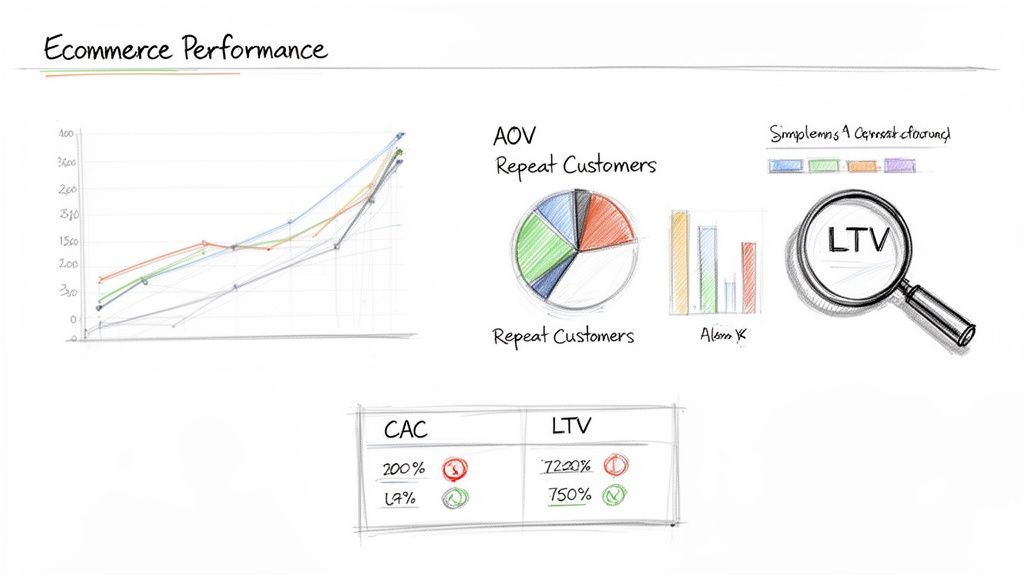
As soon as you connect the platforms, HubSpot gives you a pre-built ecommerce dashboard. These reports draw a direct line from your marketing activities to your bank account, giving you a clear view of the numbers that matter.
Key Reports You Should Live In
Forget spending hours in spreadsheets. Your new dashboard puts critical insights at your fingertips.
- Average Order Value by Source: This report shows which channels—paid ads, organic search, email—bring in your highest-spending customers. If Facebook campaigns drive an AOV of $150 while Google Ads hover at $95, you know exactly where to double down.
- New Customers by Month: A vital health check for your business growth. Are you consistently attracting new buyers?
- Abandoned Cart Recovery: See precisely how much revenue your automated workflows are clawing back every month.
The goal is to stop obsessing over surface-level metrics like open rates and start focusing on numbers that pay the bills. This dashboard makes that leap effortless.
Building Custom Reports to Answer Big Questions
The default dashboard is a great start, but the real power is in building your own custom reports to answer the unique questions that give your store a competitive edge.
It's one thing to know your overall LTV. But what if you could answer, "What's the LTV of customers who first bought Product X during our Black Friday sale?" That’s the kind of granular insight that transforms profitability.
Here are a few custom reports every Shopify store owner should build:
- Top Products Driving Repeat Business: Pinpoint which products are the "gateway" to creating loyal customers.
- Campaign Influence on High-Value Orders: See which email campaigns or ad sets consistently drive orders over a certain amount, like $200.
- Customer Acquisition Cost (CAC) vs. Lifetime Value (LTV) by Channel: The ultimate ROI report. It shows which channels are profitable now and which are sustainable for long-term growth.
When you blend Shopify's order data with HubSpot's marketing attribution, you create a complete financial picture of the customer journey. This isn't just tracking; it's business intelligence. If you want a better handle on these figures, you can learn how to calculate your conversion rate and see its direct impact on revenue.
Common Integration Pitfalls That Are Costing You Money
Even with a perfect setup, your HubSpot and Shopify integration can develop nasty, money-draining habits. These are the subtle, silent profit leaks that go unnoticed for months. Over time, these small misconfigurations add up to real costs in bloated subscription fees, missed sales, and wasted effort.
The "Data Junk Drawer" Problem
The most common mistake? Rushing through the initial field mapping. Accepting default settings creates a "data junk drawer." When you have vague fields and mismatched properties, your segmentation efforts are dead on arrival. How can you build a campaign for high-value customers if you don't have a clean LTV property to work with? You can't.
Then there's the duplicate contact monster. HubSpot's pricing is tied to your marketing contact count. If your sync rules are too forgiving, every guest checkout or typo can create a new contact. These duplicates quickly spiral into thousands, needlessly inflating your monthly bill.
When Good Workflows Go Bad
Even with clean data, your automations can—and will—break. A classic example is a workflow that hinges on a product property that gets changed or deleted in Shopify.
Imagine a post-purchase upsell workflow that triggers when someone buys "Classic Black Tee." Months later, your team renames it to "The Classic Tee - Black" for SEO. Just like that, your automation is broken. The workflow silently stops enrolling new buyers, choking off your upsell revenue stream.
Pro Tip: Audit your most important, revenue-generating workflows once a quarter. Pop into the workflow's history. A sudden, unexplained drop in enrollments is a huge red flag that a trigger condition, like a product name, was changed on the Shopify side.
The Hidden Cost of Half-Baked Product Data
Finally, let's talk about your product data sync. This isn't just about tidiness; it directly impacts sales. If your HubSpot product library is missing high-quality images or persuasive descriptions, every automated email pulling that product data will look sloppy and unprofessional.
- Weak Descriptions: An abandoned cart email with just a product title is far less compelling than one that pulls in benefit-driven bullet points. If your copy is falling flat, generate bullet points that convert.
- Missing Images: An instant conversion killer.
- Outdated Pricing: Syncing the wrong price erodes customer trust and creates a support nightmare.
Ensuring your product data is rich and accurate in HubSpot is a direct investment in the performance of every marketing email you send.
Got Questions? We've Got Answers
Even with a step-by-step guide, it's natural to have questions. Let's tackle the most common ones we hear from Shopify merchants.
How Often Does HubSpot Sync with Shopify?
The data sync is fast. With the native integration, updates happen in near real-time, typically within 5-10 minutes. This speed is what makes timely automations possible. When a customer abandons their cart, that info zips right over to HubSpot so your workflow can trigger immediately.
Will This Integration Slow Down My Store?
Not a chance. This is a valid concern for any merchant. The integration works entirely in the background using APIs to transfer data between HubSpot and Shopify, so it has zero impact on your site's front-end performance. Your customers won't notice a thing.
Can I Sync All My Old Shopify Data?
Yes, and you absolutely should. When you first set up the connection, you’ll get the option to import all your historical customer and order data. Don't skip this.
This is one of the most important steps. Pulling in your entire history from day one gives you a complete 360-degree view of every customer. You can immediately start building segments based on past purchase behavior, not just from this day forward.
Do I Need a Paid HubSpot Plan for This to Work?
You can start with the free HubSpot CRM. This lets you connect the platforms and sync essential data like contacts, orders, and products. It’s a great way to get your data organized.
However, to unlock the revenue-driving automation, custom reporting, and granular segmentation, you'll need a paid plan like Marketing Hub Starter or Professional. The free plan is the foundation; the paid plans are where you build your money-making machine.
Ready to turn your store’s conversations into conversions? Selzee is an AI shopping assistant that delivers instant support, personalized recommendations, and proactive guidance to boost your AOV and conversion rates. Discover how Selzee can automate your sales today.